
How I Self-Hosted Reactive Resume on My TrueNAS server with Dockge Container
One of the best parts about running a home lab is being able to self-host applications that make life easier. Recently, I set up Reactive Resume — an open-source resume builder — on my TrueNAS network attached storage (NAS). I used Dockge (a web-based Docker container manager) to handle the deployment.
Here’s a step-by-step breakdown of how I did it.
Step 1: Preparing the Environment
Before deploying Reactive Resume, I made sure my TrueNAS system was ready for container workloads:
– TrueNAS installed & configured: I already had TrueNAS SCALE running as my NAS operating system.
– Dockge set up: Dockge was already installed and managing containers smoothly.
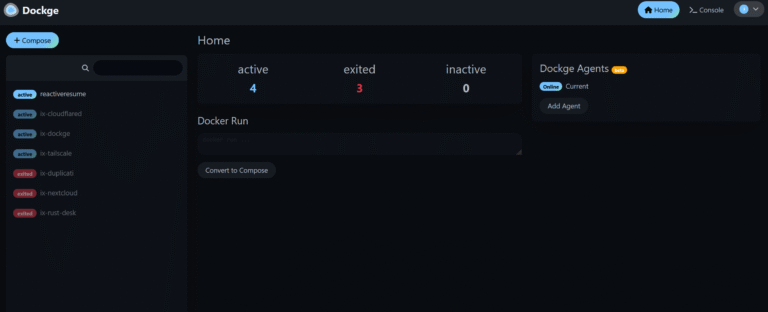
Step 2: Creating a New Project in Dockge
Dockge makes container management very straightforward. From the web interface:
1. Click “New Project”.
2. Choose a name like `reactive-resume`.
3. Add a project folder path where the Docker Compose file will live.
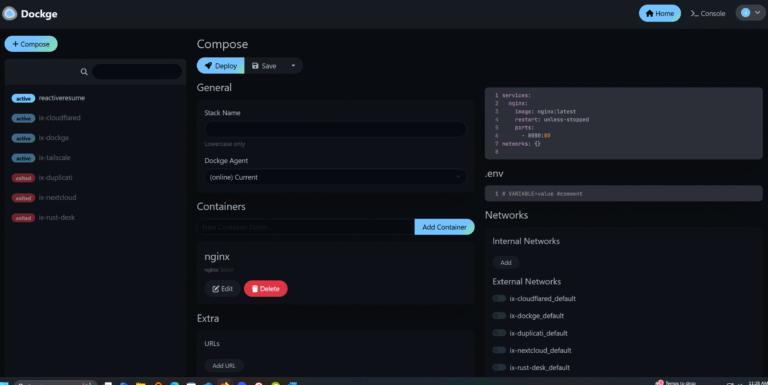
Step 3: Writing the Docker Compose File
In the new project folder, I created a `docker-compose.yml` file. Reactive Resume provides an example compose file, and I adjusted it to fit my setup (storage paths, ports, etc.).
Here’s a simplified version of what I used:
version: “3.8”
services:
reactive-resume:
image: amruthpillai/reactive-resume:latest
container_name: reactive-resume
restart: unless-stopped
ports:
– “3000:3000”
volumes:
– ./data:/app/data
I got the actual Docker Compose file from the Reactve Resume wiki https://wiki.serversatho.me/en/reactiveresume
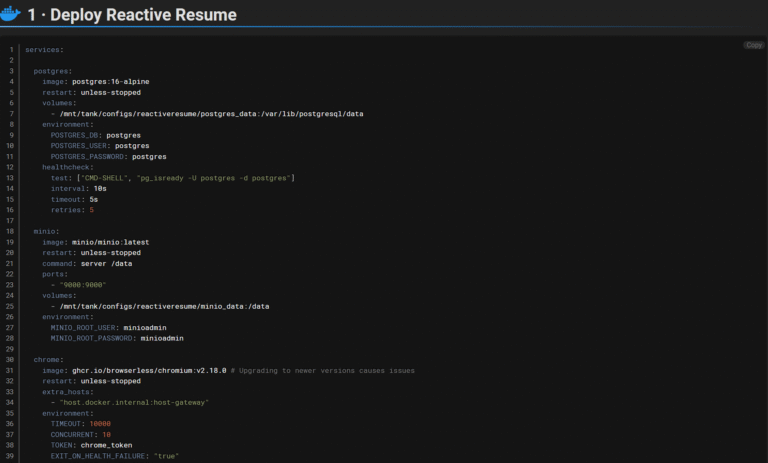
Step 4: Deploying the Container
Once the compose file was in place, I went back into Dockge and clicked “Deploy Project”. Dockge pulled the image and spun up the container without any issues.
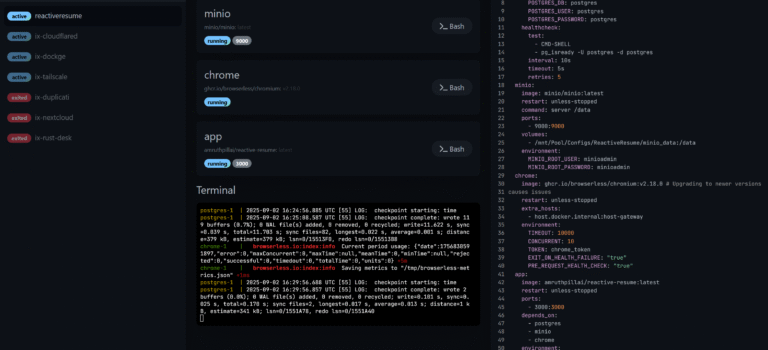
Step 5: Accessing Reactive Resume
With the container running, I opened a browser and navigated to:
http://<my-NAS-IP>:3000 address
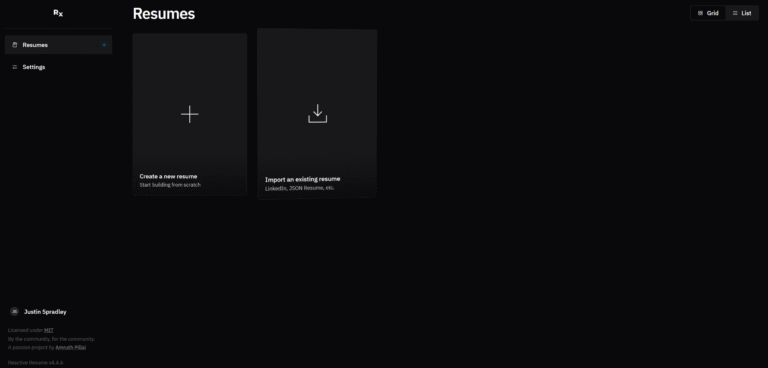
Reactive Resume loaded right up, ready for me to start building resumes.
Step 6: Final Tweaks & Persistence
To make sure everything works long-term:
– I set the container to restart automatically.
– I confirmed that the data volume was saving resume files and templates correctly.
– I noted the port mapping so I could access Reactive Resume both on my local network and via Tailscale (for remote access).
What I Learned
– Dockge simplifies container management — instead of manually typing docker-compose commands, I could manage everything from a clean web UI.
– TrueNAS works great as a self-hosting platform — storage and apps are tightly integrated, which means I don’t need separate servers for personal apps.
– Reactive Resume is lightweight and fast — perfect for a self-hosted tool that I can access anywhere.
Wrapping Up
Self-hosting Reactive Resume was a smooth project and another step toward making my TrueNAS home lab more useful. Now I can manage my resumes, export PDFs, and keep everything private — all hosted on my own hardware.
If you’ve been looking for an open-source alternative to commercial resume builders, give Reactive Resume a try on your own server or NAS setup.